
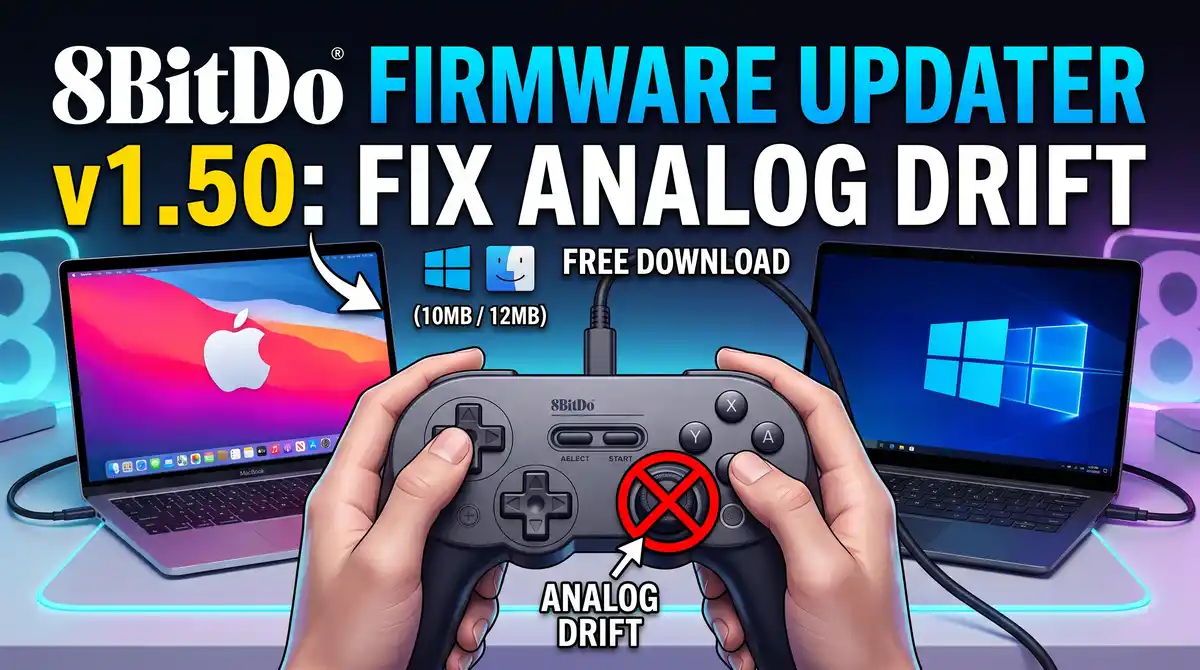
Are you experiencing the analog drift issue on your 8BitDo controller when connected to a Windows PC or Xbox console?
Don't rush to disassemble it. 8BitDo has released an update software through the 8BitDo Firmware Updater, designed to fix various bugs and improve the performance of your gamepad.
This official software allows you to perform the flashing or firmware update process easily and automatically. Here's a complete guide, key features, and the latest download link.
Key Features of 8BitDo Firmware Updater
This upgrade tool is designed to be user-friendly with the following key features:
- Auto Controller Recognition: The software will automatically detect the type and model of your 8BitDo controller as soon as it's plugged into your PC.
- Auto-Download via Internet: No need to manually search for the firmware file on the website. As long as your PC is connected to the internet, the software will download the latest firmware version that's most suitable.
- Advanced Mode: An option is available for advanced users to perform a manual firmware update (Advanced Mode) to downgrade or install a specific version.
- Auto Upgrade Mode: The controller will automatically enter upgrade mode. (Note: This feature does not apply to old or discontinued models).
Download Link for 8BitDo Firmware Updater (Windows & macOS)
Make sure to download the version that matches your computer's operating system. This software is lightweight and won't burden your PC's performance.
For Windows Users:
Supported OS: Windows 7 and above
File Name: 8BitDo_Firmware_Updater_Win.zip
File Type: .exe
File Size: 10MB
For macOS Users:
Supported OS: macOS 10.10 and above
File Name: 8BitDo_Firmware_Updater_macOS.dmg
File Type: .dmg
File Size: 12MB
Update Log: What's New in Firmware v1.50?
One of the most critical reasons to update your firmware immediately is the release of Firmware v1.50. This update brings vital improvements that gamers have been waiting for:
Fixed the analog drift issue: Fixes the analog drift issue on the controller that often occurs when the device wakes up from sleep mode when connected to an Xbox console or Windows PC.
How to Update Firmware (Picture Instructions)
The update process is very straightforward. Follow these basic steps:
1. Download and extract (for Windows) or open the DMG file (for macOS) from the link above.
2. Run the 8BitDo Firmware Updater application.
3. Connect your 8BitDo controller to your computer using the provided USB cable.
4. Wait for the software to detect your controller (Auto Recognition).
5. Click the Update button on the screen and let the process run until the indicator reaches 100%. Do not unplug the cable during the process.
By performing regular updates, the lifespan and precision of your controller will always be in optimal condition.
No approved comments yet.